
A lost phone abroad can take your boarding pass, banking app, messages, and probably the authenticator app that unlocks everything else out of reach in one moment. Your phone can lock itself, track its last known location, and erase its own data from somewhere else — but only because you turned that feature on before it went missing. Right now, without the phone, you’re doing all of this from memory, on someone else’s wifi, in a language you may not read fluently.
You don’t have your provider’s local number memorized. And every minute the SIM stays active and the screen stays unlocked is a minute someone else has to try their luck with it. Here’s what to do, in order, in the first hour after a lost phone abroad.
What this covers
- Lost phone abroad: what should you do in the first five minutes?
- How do you lock or erase an iPhone from another device?
- How do you lock or erase an Android phone from another device?
- How do you stop someone from using your SIM or eSIM?
- Which accounts need your attention first — without locking yourself out?
- What happens if the phone never turns up?
- What should you set up before your next trip?
Lost phone abroad: what should you do in the first five minutes?
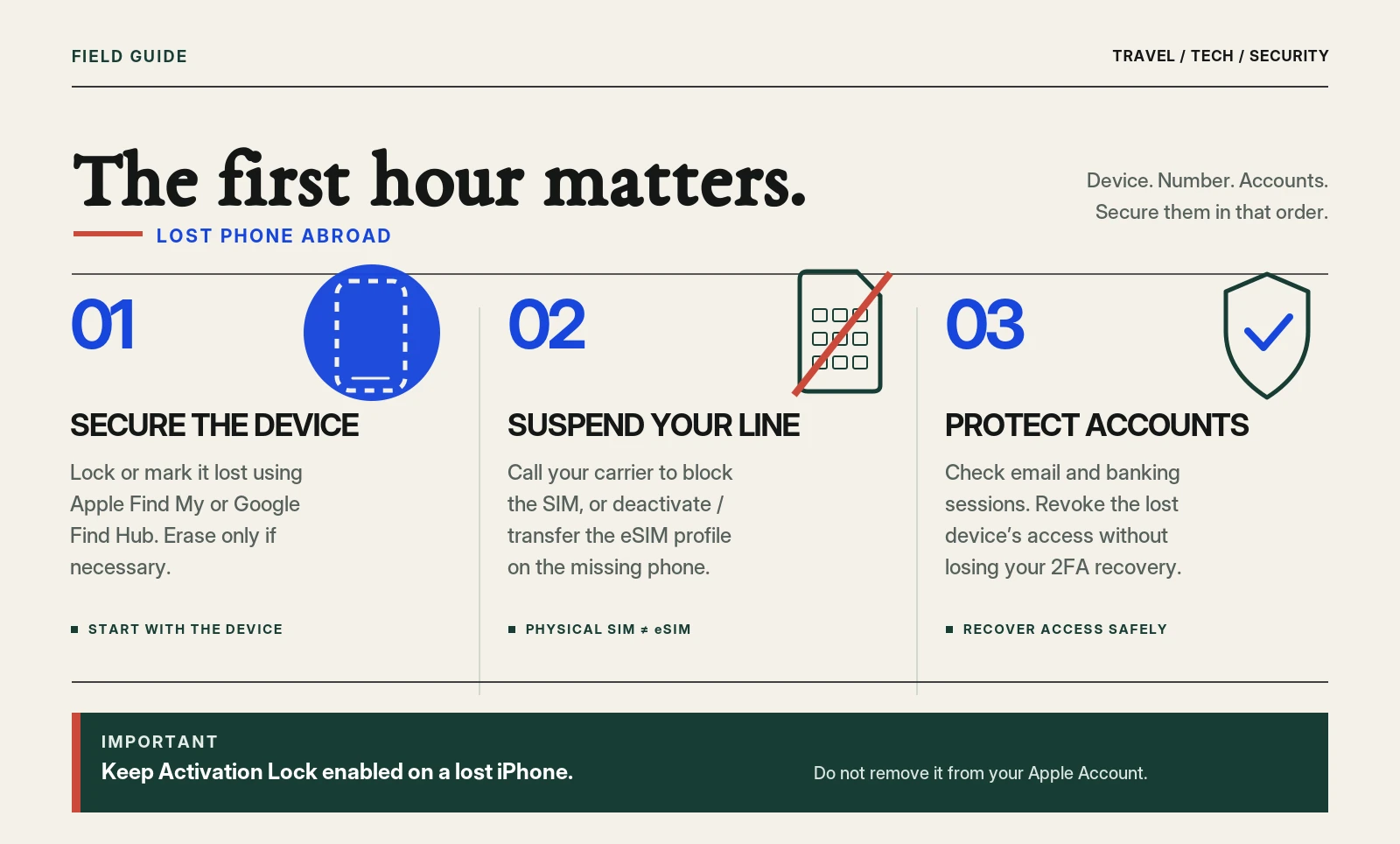
Borrow a phone, or use a laptop, and go straight to the manufacturer’s own “find my device” page — not a search result, not an app you haven’t used before. For an iPhone or iPad, that’s iCloud.com/find. For an Android phone, that’s the Find Hub (formerly Find My Device) sign-in page. Sign in with the same account you used on the lost phone. Both services let you see the device’s last known location, play a sound, lock it, or erase it — in that order, before you do anything else with your accounts.
How do you lock or erase an iPhone from another device?
Apple’s own instructions put locking first: on iCloud.com/find, select the device and choose “Mark as Lost.” This locks the phone with its passcode and suspends Apple Pay cards, and you don’t need a verification code to do it, even if the missing phone was your trusted device for two-factor sign-in. You can add a contact number to the lock screen — Apple’s current guidance says to leave this blank if the phone was stolen rather than simply lost, since it doubles as a way for someone to try to contact you under false pretenses.
Erasing is a separate, later step. Apple is explicit that Activation Lock stays on a device after a remote erase, and that you should not remove the device from your account just because you erased it — doing so would strip the one protection that stops it from being resold. If the phone is offline when you erase it, the erase happens the next time it connects.
How do you lock or erase an Android phone from another device?
Google’s equivalent is Find Hub, reachable at android.com/find or through the Find Hub app on another Android device. The phone needs to have been signed into a Google Account with Find My Device turned on — which is the default — and to have location and a data or wifi connection active to respond. From there you can ring it, lock it with your existing PIN or password, or, as a last step, erase it. Google’s own help pages are blunt about the trade-off: erasing deletes everything on the device and switches Find My Device off for it afterward, so you lose the ability to track it the moment you do.
Locking buys you time to do everything in the next two sections. Erasing closes the door on all of it, including finding the phone again. Don’t erase first.
How do you stop someone from using your SIM or eSIM?
This is the step people skip, because it means a phone call you don’t want to make in a foreign country. Call your mobile provider — using the number on their own support site, not a number texted to you or found through a search ad — and ask them to suspend or block the number. A locked screen stops someone opening your apps. It does nothing to stop them using your line to receive your calls and SMS codes.
The mechanism differs slightly depending on which you have. With a physical SIM, whoever has the phone could in theory move the card into another device, which is exactly what a provider-side suspension of the number blocks. With an eSIM, there’s no physical card to move, so that specific swap risk doesn’t apply — but the eSIM profile on the lost phone can still receive your calls and codes until your provider deactivates or transfers it remotely, which is the same request, just phrased for an eSIM: ask them to deactivate or transfer the profile, not “block the card.”
Which accounts need your attention first — without locking yourself out?
You locked the device. You blocked the line. Now check what was actually signed in on that phone, because the phone itself was never really the asset — the accounts open on it were. Start with your email account, since it’s usually the one that can reset everything else. Then your banking and payment apps. Then anything you used as a second factor: an authenticator app, SMS codes tied to the number you just had blocked, or a password manager with its vault unlocked on that screen.
Here’s the part worth getting right rather than fast: don’t simply “sign out of” your authenticator app from another device if that’s your only working two-factor method — doing that can lock you out of the very accounts you’re trying to protect, with no quick way back in. Instead, go into each account’s own security settings (email, bank, password manager) from a device you trust, and look for a list of “trusted devices,” “active sessions,” or “connected apps.” Remove the lost phone specifically from that list — that revokes its access without touching your own ability to log in. If an account offers backup codes, check you still have them before you remove anything.
What happens if the phone never turns up?
If the device stays lost, Apple’s and Google’s own guidance converge on the same point: don’t remove it from your account just because it’s gone. On iPhone, that keeps Activation Lock in place, which is what stops a found-or-stolen device from being wiped and resold as new. On Android, Google’s instructions describe the same logic for its own device-protection features.
What should you set up before your next trip?
Everything above only works because “Find My” or “Find My Device” was already turned on, the lock screen already had a passcode, and you already knew which account the phone was signed into. None of that can be set up after the phone is gone. Before you travel again: confirm the feature is on, write down (on paper, not in a note on the same phone) which email address and which authenticator app are tied to your accounts, save your backup codes somewhere other than the phone itself, and check whether your provider lets you block a SIM or eSIM by app or website rather than only by phone call.
Sources
- Apple Support, “If your iPhone or iPad was stolen,” support.apple.com/120837 — accessed 23 November 2026
- Apple Support, “How to find your lost iPhone or iPad,” support.apple.com/en-us/HT201472 — accessed 23 November 2026
- Google Help, “Find, secure, or erase a lost Android device,” support.google.com/accounts/answer/6160491 — accessed 23 November 2026
This guide describes general device-recovery steps published by Apple and Google as of November 2026. Menu names and steps can change between software versions; always follow the current on-screen instructions from Apple or Google directly. This is not legal, insurance, or security-incident advice for your specific situation.
Up next: Make your next journey easier with practical technology coverage in Tech & AI.


![Apple Vision Pro headset displayed on modern desk with soft lighting fashion magazine style photography"]](https://www.privatecharterx.blog/wp-content/uploads/2025/08/romeo-a-TGQQbDoG2C4-unsplash-scaled-768x512.jpg "Apple Vision Pro Review 2025: Is It Worth the Price? 9")